
Try the live Blue Harbor demo
Auto-sign into a seeded property-operations account and explore real workflows in locked view-only mode.
Open demo

Guides

Search FORM guides, filter by category, and open the walkthrough you need.

34 guides found
Start here

Navigation, access, and first-time setup

These guides are for the first admin pass: understanding the shared taskbar, setting up the org, and getting staff and customer users into the right locations.

Daily work

Work orders, procedures, templates, form lists, and tags

This is the operational core. These guides explain how to standardize recurring work so the work-order queue stays clean as maintenance volume grows.

Coordination

Inventory, schedules, resources, and reporting

Once work-order basics are stable, these guides help the team coordinate labor, parts, and visibility without leaving the maintenance workflow.

Resident and guest operations

Customers, properties, lease context, and invoicing

These guides are for multifamily, hotel, and resort operators who need customer records tied to real rooms, units, or addresses.

Public-facing setup

Customer portal and website extension

These guides cover the external experience: what customers see, how the extension is embedded, and how to keep the public request path clean and branded.

Real-world playbooks

Apartment, hotel, and resort operating scenarios

These scenario guides help staff understand how the same FORM workflow shifts slightly depending on the kind of property being managed.

All users

Learn the shared navigation

Understand what lives in the taskbar, what stays in Tool Box, and where each daily workspace belongs.

Screenshots
Overview and shared taskbar

This is the real Overview page with the shared taskbar across the bottom. It is the fastest way to teach new users where Work Orders, Inventory, Schedule, Procedures, Reporting, Admin, and Tool Box live.
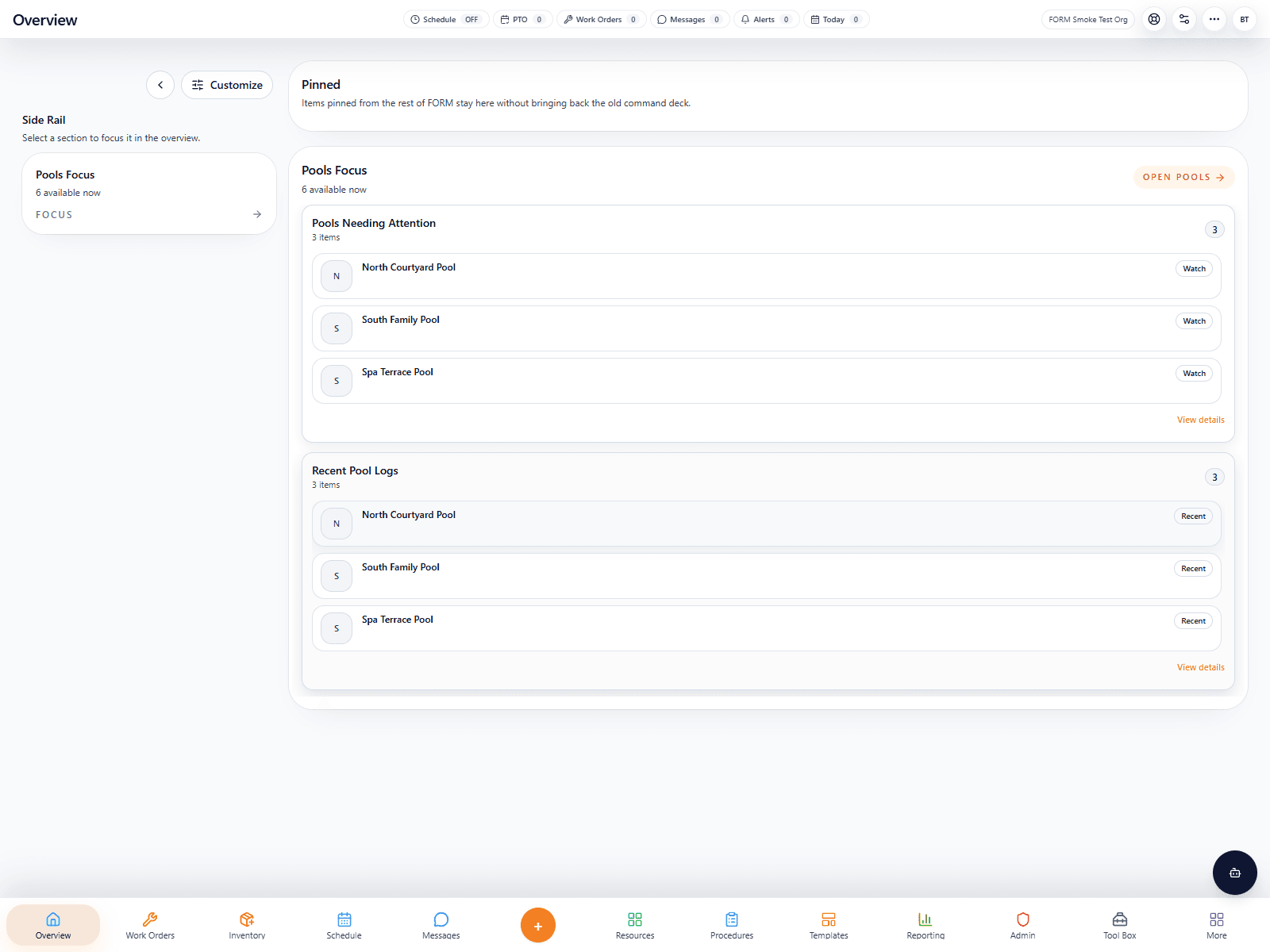
Live FORM overview screenshot from the smoke-test organization
Where to click: Start on Overview, then point users to the bottom taskbar first before drilling into any deeper tool.
Live Tool Box example

This is the real Tool Box from the smoke-test org. It shows where specialized spaces such as Pools, Properties, Scheduler, Notes, Invoicing, Budget, and FORM Learning live.
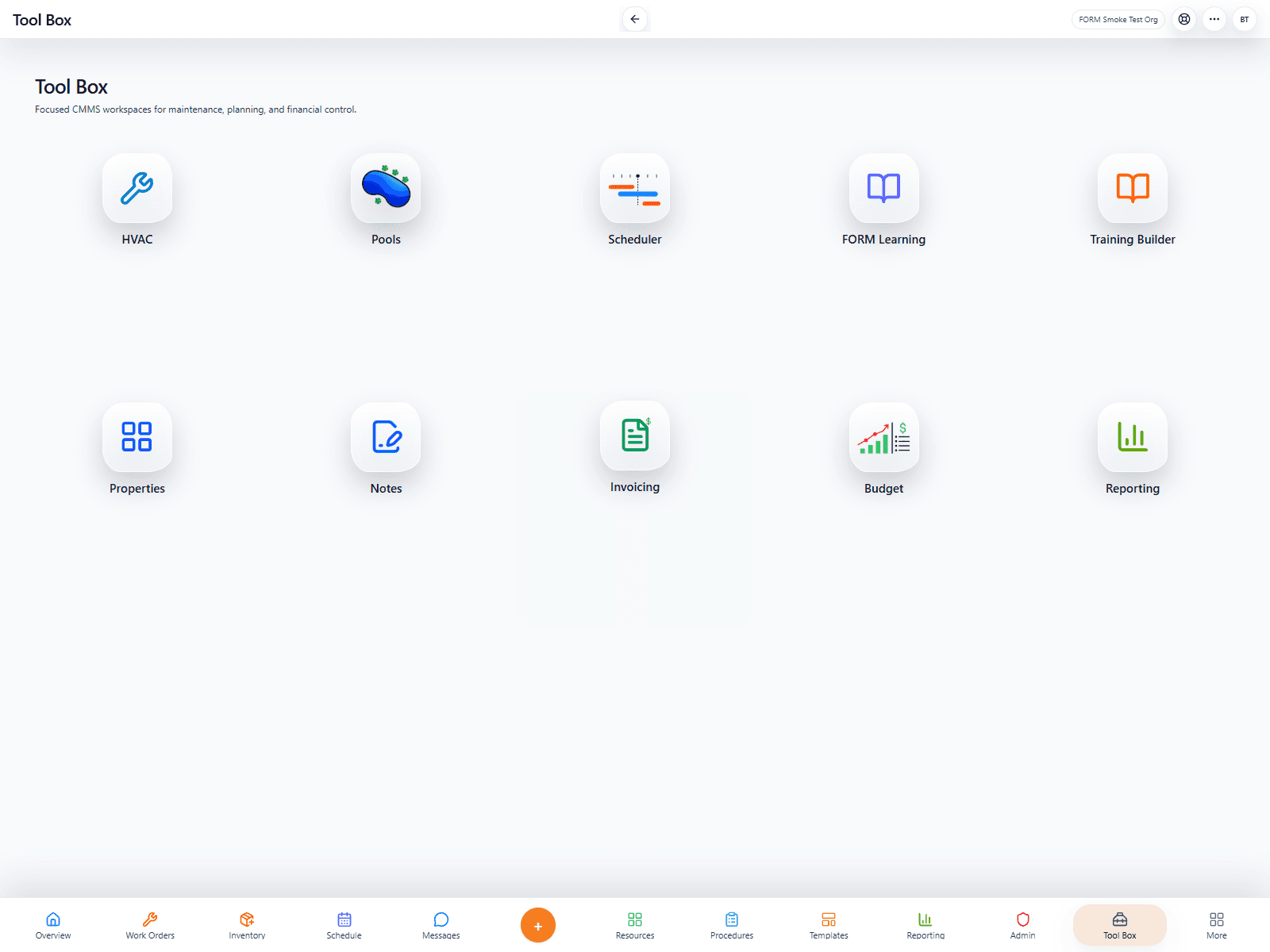
Live FORM toolbox screenshot from the smoke-test organization
Where to click: Open Tool Box from the taskbar, then click the specialized workspace you need instead of hunting through Admin.
FORM Learning in the live UI

FORM Learning is a normal in-app workspace now, with visible tutorial cards and quick access to assigned learning.
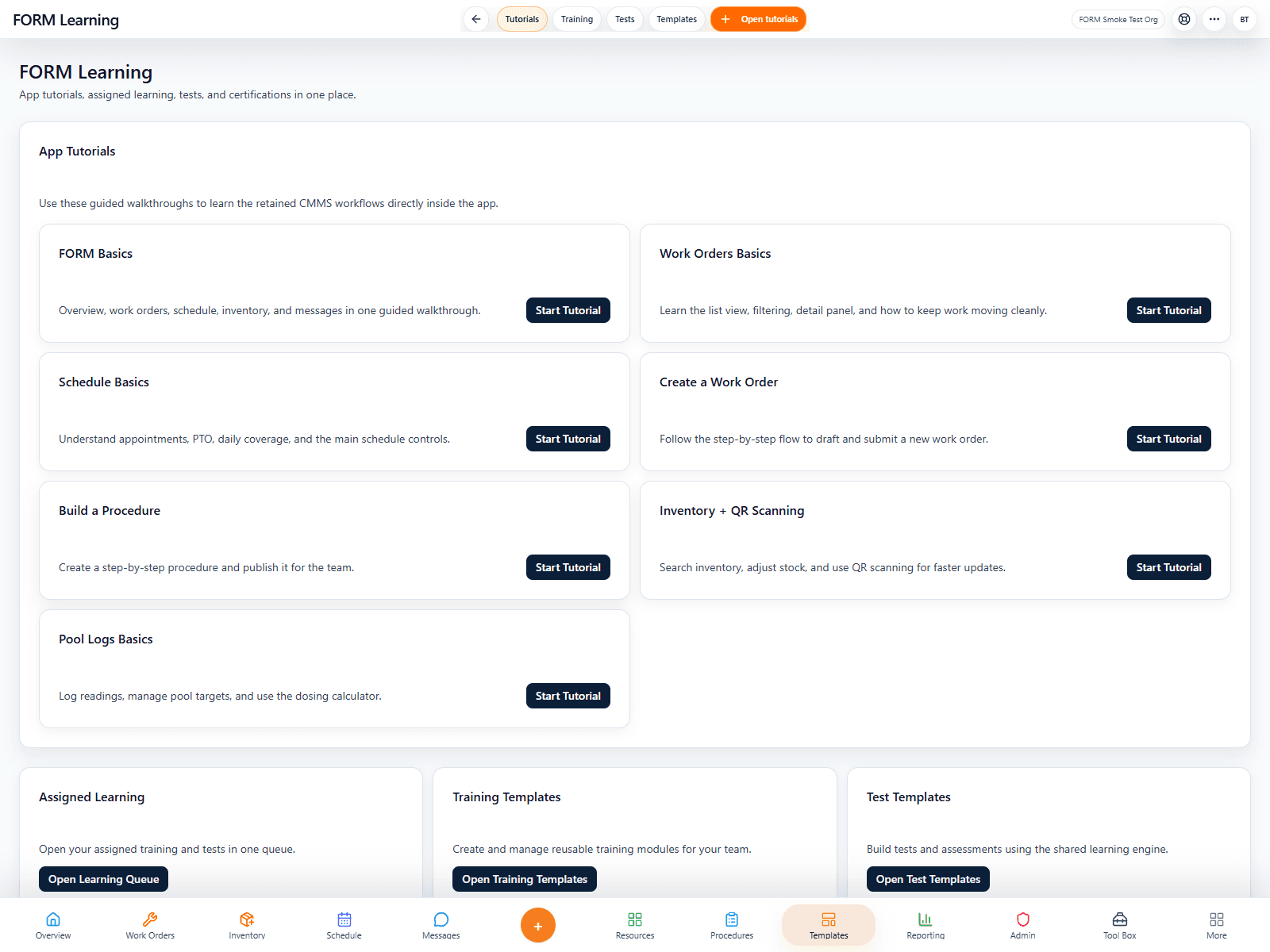
Live FORM Learning screenshot from the smoke-test organization
Where to click: From Tool Box, click FORM Learning to open tutorials instead of waiting for the pop-up coach.
Walkthrough
  1. 1
    Use the bottom taskbar for the shared daily destinations: Overview, Work Orders, Schedule, Inventory, Procedures, Reporting, Admin, Tool Box, and the supporting tools that belong with them.
  2. 2
    Open Tool Box for specialized spaces such as Pools, HVAC, Properties, Notes, Budgets, Invoicing, and FORM Learning.
  3. 3
    Use page-level tabs and panel controls for detail work instead of expecting every action to appear in the taskbar.
  4. 4
    Treat the app as one connected CMMS workflow rather than a collection of disconnected mini-products.
Key points
Every user now sees the same base taskbar structure.
The shell is centered on maintenance execution and customer-property operations.
What good looks like
Users can reach daily tools without guesswork.
Admins know where to train staff and where to keep deeper configuration tools.
Avoid
Do not treat Tool Box like a junk drawer for day-to-day work.
Do not build workarounds in Messages or Notes for work that belongs in Work Orders.